Kart Arena Controls
PC, mobile, and console input basics—always verify binds in Settings.
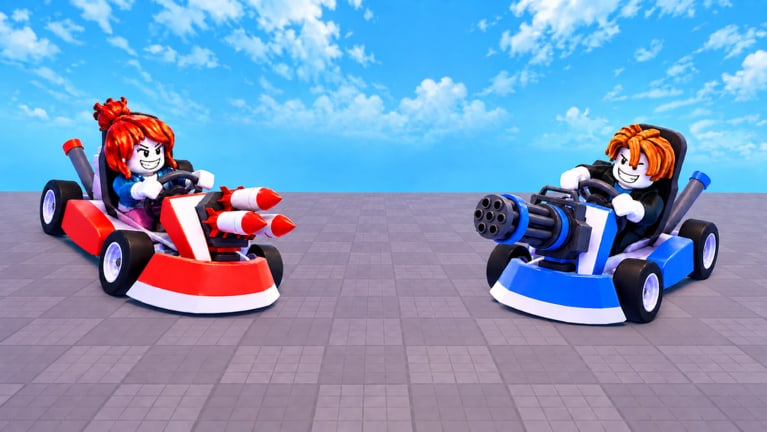
Clean controls turn Kart Arena’s chaos into readable fights. This guide covers community-observed defaults for driving, camera work, and using Lucky Block weapons on PC, mobile, and console/PS5. Exact key binds can change with patches or device templates—open Settings in-game and confirm before you blame the wiki.
If you have not finished onboarding, skim getting started first, then return here to lock muscle memory.
Universal principles
- Movement never stops — static karts eat rockets.
- Camera is a weapon — sweep spawn lanes as often as you steer.
- Item buttons matter as much as drive keys — a mine you cannot drop is dead weight.
- Sensitivity is personal — raise until you can track a strafing rival without overflicking.
- Re-check after updates — HUD and bind migrations happen on new titles (Updates).
PC (keyboard + mouse) — typical defaults
Community-observed patterns for Roblox kart arenas:
| Input | Typical role |
|---|---|
| W / A / S / D | Drive and steer |
| Mouse | Camera / aim for projectiles |
| Left click | Fire / use primary Lucky Block weapon |
| Space | Jump or boost-style burst if present in current build |
| Shift or dedicated key | Drift / brake assist when available |
| Number keys / Q–E | Swap or activate alternate drops |
| Esc / Roblox menu | Settings, leave, report |
Phrase carefully: if Space does not boost in your build, do not force it—check the on-screen prompt Kalypso Games shows in the tutorial toast.
PC setup tips
- Cap frames if mouse feels floaty on high refresh panels.
- Disable conflicting overlays that steal clicks mid-rocket.
- Keep chat unbound from your fire key so you do not type instead of shooting.
- Practice leading rockets in empty moments—PC has the highest aim ceiling for the weapons S-tier explosives.
Mobile (touch)
| Control | Typical role |
|---|---|
| Left virtual stick | Drive |
| Right-side drag | Camera |
| Fire button | Use weapon / drop item |
| Jump / action button | Jump or boost if present |
| UI icons | Shop, skins, codes, settings |
Mobile tips
- Play in landscape with clean screen protectors—missed taps drop mines at your feet.
- Increase camera sensitivity slightly so you can peek block pads without huge swipes.
- Favor denial tools (landmines) when precise rocket leads feel inconsistent.
- Mute notifications; banners steal the fire button at the worst time.
Console / PS5
Footage confirms PS5 playability. Exact glyphs depend on Roblox’s gamepad mapper and Kart Arena’s Settings labels:
| Control family | Typical role |
|---|---|
| Left stick | Drive |
| Right stick | Camera |
| Triggers / bumpers | Fire, alt-use, or boost candidates |
| Face buttons | Jump / interact / UI confirm |
| Options / menu | Settings and Roblox overlay |
Console tips
- Raise aim assist comfort if rockets feel slippery—then practice pre-aiming chokes instead of pure flicks.
- Remap conflicting Roblox system shortcuts that open menus mid-fight.
- Use headphones; explosive audio cues replace some visual tracking on living-room screens.
- When redeeming future codes, expect on-screen keyboards—see how to redeem.
Using Lucky Block items under pressure
Regardless of device:
- Confirm the item icon appears on your HUD after pickup.
- Bind awareness: know which finger/trigger fires versus which drops a mine.
- Fire rockets down predicted paths, not at current pixels only.
- Place mines behind you while boosting away from a lost duel.
- Swap off empty tools quickly so you do not click dead air.
Full contest theory sits in Lucky Blocks; finishing fights sits in how to win.
Settings audit checklist (do this weekly)
- Drive invert? (most players keep normal)
- Camera sensitivity per axis
- Vibration on/off for console feedback versus distraction
- Graphics level—stable FPS beats max particles when aiming
- Privacy / party settings so random teleports do not yank focus
After each latest patch, spend thirty seconds here before ranked-feeling grind sessions.
Accessibility and comfort
If stick or keyboard strain shows up during long Coin grinds for skins, lower session length—Kart Arena’s five-minute rounds make natural break points. Colorblind players should prefer high-contrast kart skins so self-identification stays easy.
Anti-patterns
- Copying a pro’s sensitivity blindly
- Fighting with the Roblox menu half-open
- Holding the fire button while the item is on cooldown animation
- Ignoring mobile UI scale until buttons overlap the stick
- Installing “input helper” executors—those are Scripts with ban risk, not accessibility tools
Practice drills (10 minutes)
- Figure-eights around mid for 2 minutes without shooting.
- Camera only tracking of one rival for a full match.
- Item drop cadence — pick a block, use it within ten seconds, rotate.
- Device switch warm-up if you alternate PC and mobile the same day.
Master inputs, then layer meta. Controls are the invisible half of every highlight reel on the Players climb.
Frequently Asked Questions
Quick answers to the most common questions.
What are the exact Kart Arena keybinds?
Defaults resemble standard Roblox kart/arena schemes (WASD drive, click to use items), but always confirm in Settings—patches and devices vary.
Does Kart Arena support PS5?
Yes—community PS5 gameplay exists. Use in-game prompts for face-button roles and tune stick sensitivity early.
Why won’t my weapon fire?
Common causes: empty item, UI focus on chat/menus, or mis-bound mobile buttons. Reopen Settings and verify the use-item control.
Should I use a third-party input script?
No. Stick to official Settings. Executors risk bans and malware.